Ctrl+K
Four Corners Science and Computing Club Lab Notebook - Home
  • The Four Corners Science and Computing Club (4CSCC) Lab Notebook

Introduction

  • Opener
  • Introduction
  • Objectives
  • Materials
  • Introduction to Using the micro:bit with MakeCode
    • What is the BBC micro:bit
    • The MakeCode Editor
    • Connecting the micro:bit to a Computer with MakeCode
    • Running Code on a micro:bit with MakeCode
  • Introduction to Using the micro:bit with Python
    • What is the BBC micro:bit
    • The Python Editor
    • Connecting the micro:bit to a Computer with the Python Editor
    • Running Code on a micro:bit with the Python Editor
  • Lab: Tinkering with MakeCode and the micro:bit

The micro:bit Display

  • Opener
  • Introduction
  • Objectives
  • Materials
  • The micro:bit Display with MakeCode
    • The micro:bit Display
    • The String Basic Type
    • Displaying Strings
    • Variables
    • The on start and forever Blocks
    • Displaying Built-In Images
    • Displaying Custom Images
  • The micro:bit Display with Python
    • The micro:bit Display
    • The String (str) Data Type
    • Comments
    • Displaying Strings
    • Variables
    • Loops
    • Built-In Images
    • Displaying Custom Images
    • Lists
    • Displaying an Animation
    • Vocabulary
  • Lab: Creating a Digital Nametag with BBC micro:bit
  • Rubric: Creating a Digital Nametag with BBC micro:bit
  • Resources

The micro:bit Onboard Components

  • Opener
  • Introduction
  • Objectives
  • Materials
  • Onboard Components with MakeCode
    • An Introduction to the Onboard Components
    • The Basic Number Type
    • The A and B Buttons
    • The Captive Touch Logo
    • The Captive Touch Pins
    • The Temperature Sensor
    • The Light Sensor
    • The Accelerometer
    • MakeCode: The Sound Sensor
    • MakeCode: The Buzzer
  • Onboard Components with Python
    • Introduction to the Onboard Components
    • Numeric Data Types
    • Serial Communication
    • The A and B Buttons
    • The Captive Touch Logo
    • The Captive Touch Pins
    • The Temperature Sensor
    • The Light Sensor
    • The Accelerometer/Compass
    • The Sound Sensor
    • The Buzzer/Speaker
    • Vocabulary
  • Lab: Building a Fidget Device with BBC micro:bit
  • Ruberic: Building a Fidget Device with BBC micro:bit
  • Resources

Light-Emitting Dioded (LEDs)

  • Opener
  • Introduction to Light-Emitting Diodes
  • Objectives
  • Materials
  • Using LEDs with MakeCode
    • Introduction to LEDs
    • The micro:bit General-Purpose Input/Output (GPIO) Pins
    • Breadboards
    • Parts of an LED
    • Resistors
    • Building an LED Circuit
    • Complete and Incomplete Circuits
    • Digital and Analog Signals
    • Blinking an LED
    • Conditionals
    • The Boolean Basic Type
    • Turing an LED on and Off with the micro:bit Buttons
    • Varying the Brightness of an LED
    • Using an LED with the Light Sensor
  • Using LEDS with Python
    • Introduction to LEDs
    • The micro:bit General-Purpose Input/Output (GPIO) Pins
    • Breadboards
    • Light-emitting Diodes (LEDs)
    • Resistors
    • Building an LED Circuit
    • Complete and Incomplete Circuits
    • Digital and Analog Signals
    • Blinking an LED
    • Conditional Statements
    • The Boolean (bool) Data Type
    • Turning an LED on and Off with the micro:bit Buttons
    • Varying the Brightness of an LED
    • Using an LED with the Light Sensor
    • Vocabulary
  • Lab: TODO
  • Rubric
  • Resources

RGB LEDs

  • Opener
  • Introduction
  • Objectives
  • Materials
  • Using RGB LEDS with Python
    • Introduction to RGB LEDs
    • RGB LEDs
    • Binary, Bits, and Bytes
    • RGB Color Codes (Part 1)
    • Functions
    • Building an RGB LED Circuit
    • Flashing Colors on an RGB LED
    • Dictionaries
    • RGB Color Codes (Part 2)
    • Flashing Custom Colors on a RGB LED
    • Flashing Random Colors on an RGB LED
    • Vocabulary
  • Lab: TODO
  • Repository
  • Open issue
  • .md

The Captive Touch Logo

Contents

  • Displaying the State of the Captive Touch Logo on the micro:bit Display
  • Printing the State of the Captive Touch Logo to Serial

The Captive Touch Logo#

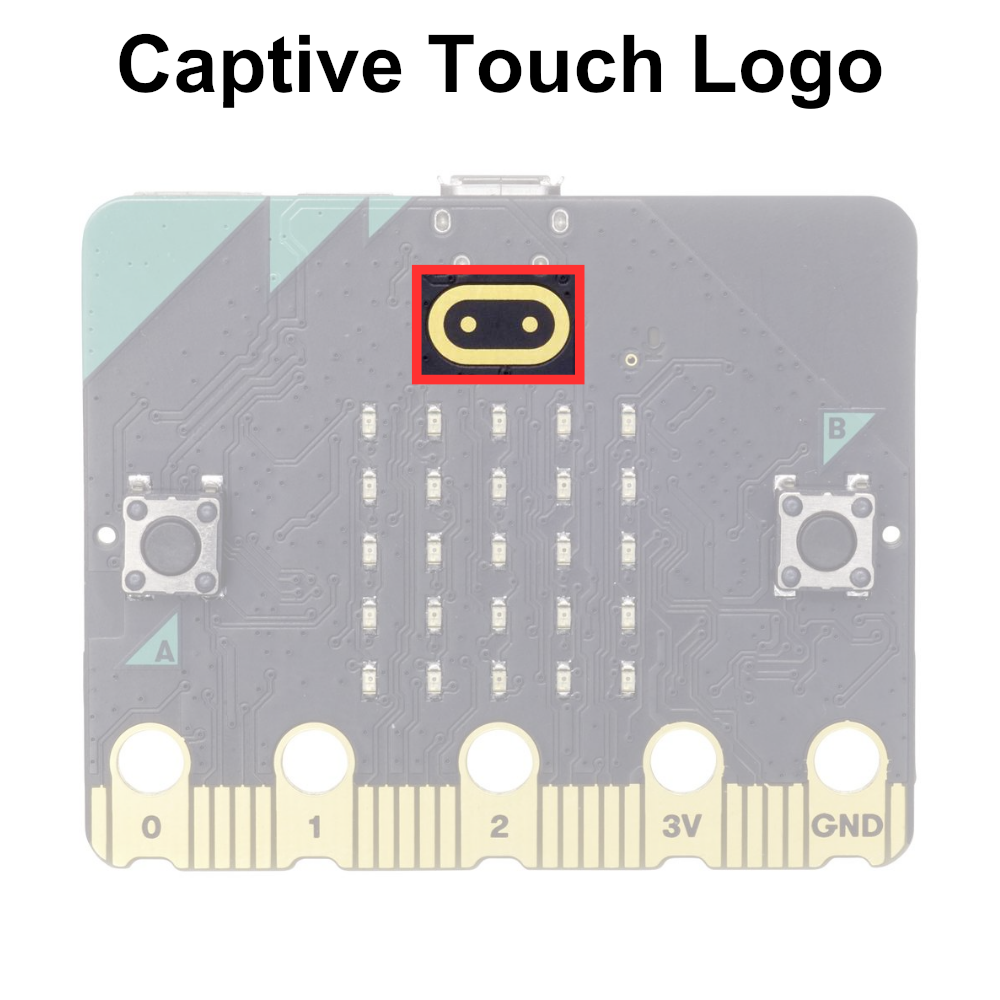
The micro:bit captive touch logo is a touch-sensitive pad located on the front of the microcontroller board, just below the LED matrix display. It uses the electrical properties of the human body to behave similarly to a button.

The captive touch logo can be programmed to respond to touch events, enabling users to trigger actions, control functionality, or provide input to micro:bit programs. It offers a simple and intuitive way to interact with the device without the need for physical buttons or external sensors.

The captive touch logo is displayed below:
microbit-front-logo

Displaying the State of the Captive Touch Logo on the micro:bit Display#

TODO

Printing the State of the Captive Touch Logo to Serial#

# Imports go at the top
from microbit import *

# Code in a 'while True:' loop repeats forever
while True:
    # Print the state of the logo touch sensor
    print('Logo touched:', pin_logo.is_touched())
    sleep(100) # Wait for 100ms (0.1 seconds)

previous

The A and B Buttons

next

The Captive Touch Pins

Contents
  • Displaying the State of the Captive Touch Logo on the micro:bit Display
  • Printing the State of the Captive Touch Logo to Serial

By Four Corners Science and Computing Club

© Copyright 2024.