
Displaying Strings#
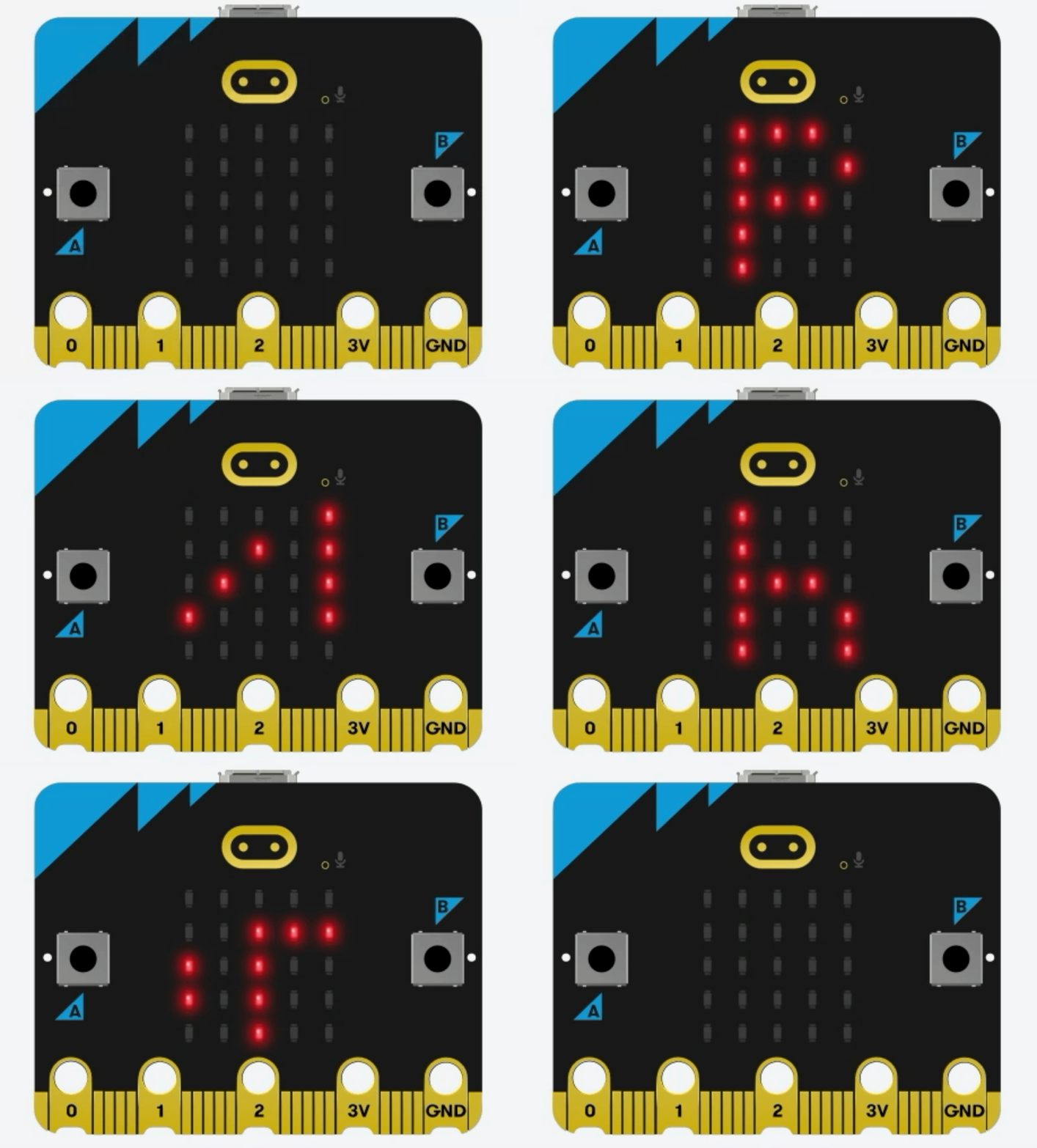
To display a string on the micro:bit 5x5 LED matrix using Python, there are two methods. The string 'Python' will be displayed on the 5x5 LED matrix in the following examples using both methods.
Displaying Strings with Python#
display.scroll()#
The display.scroll() method scrolls a string from right to left on the 5x5 LED matrix.
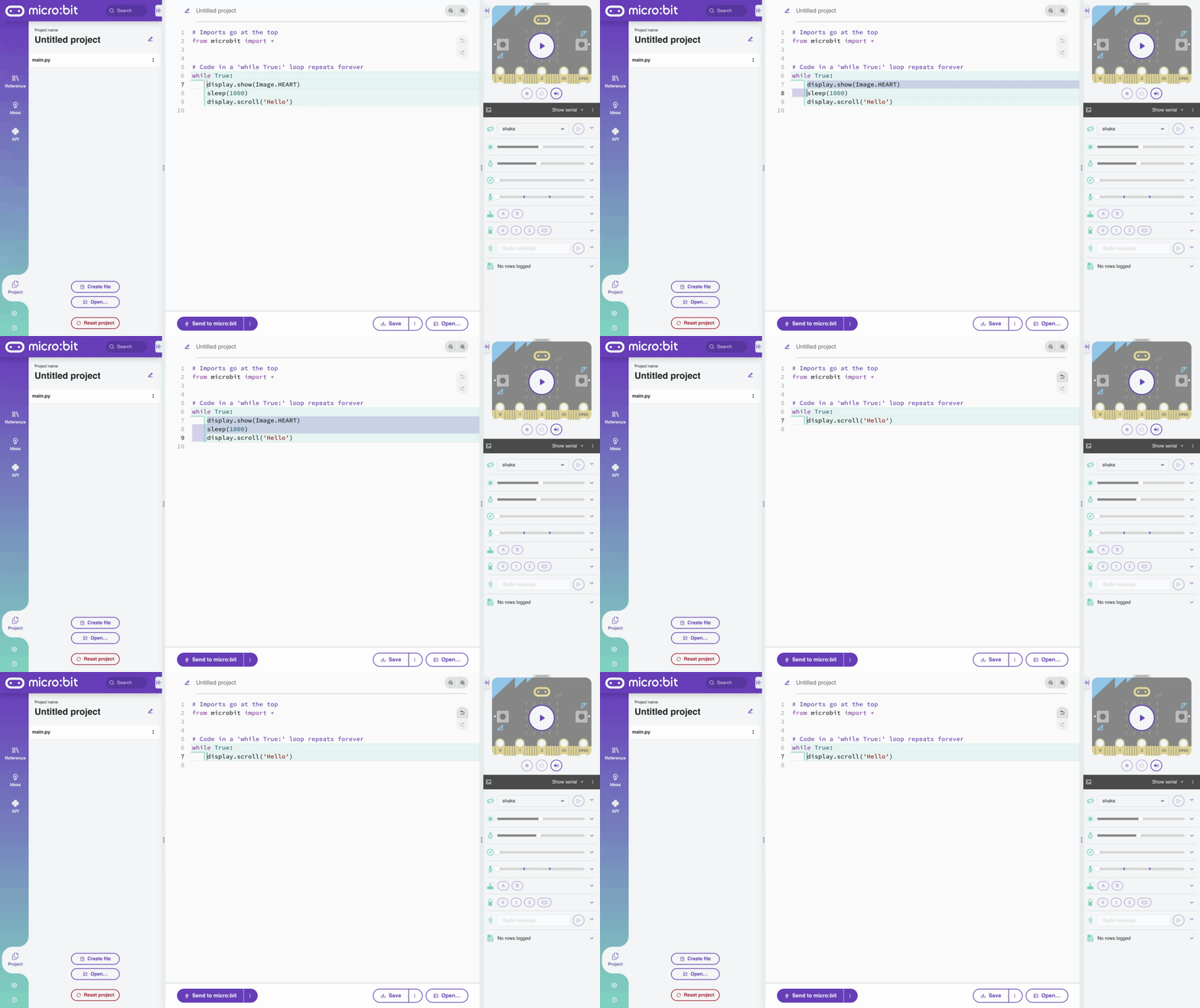
Delete all the lines of code from the default starter code on the start screen except for displyy.scroll('Hello').
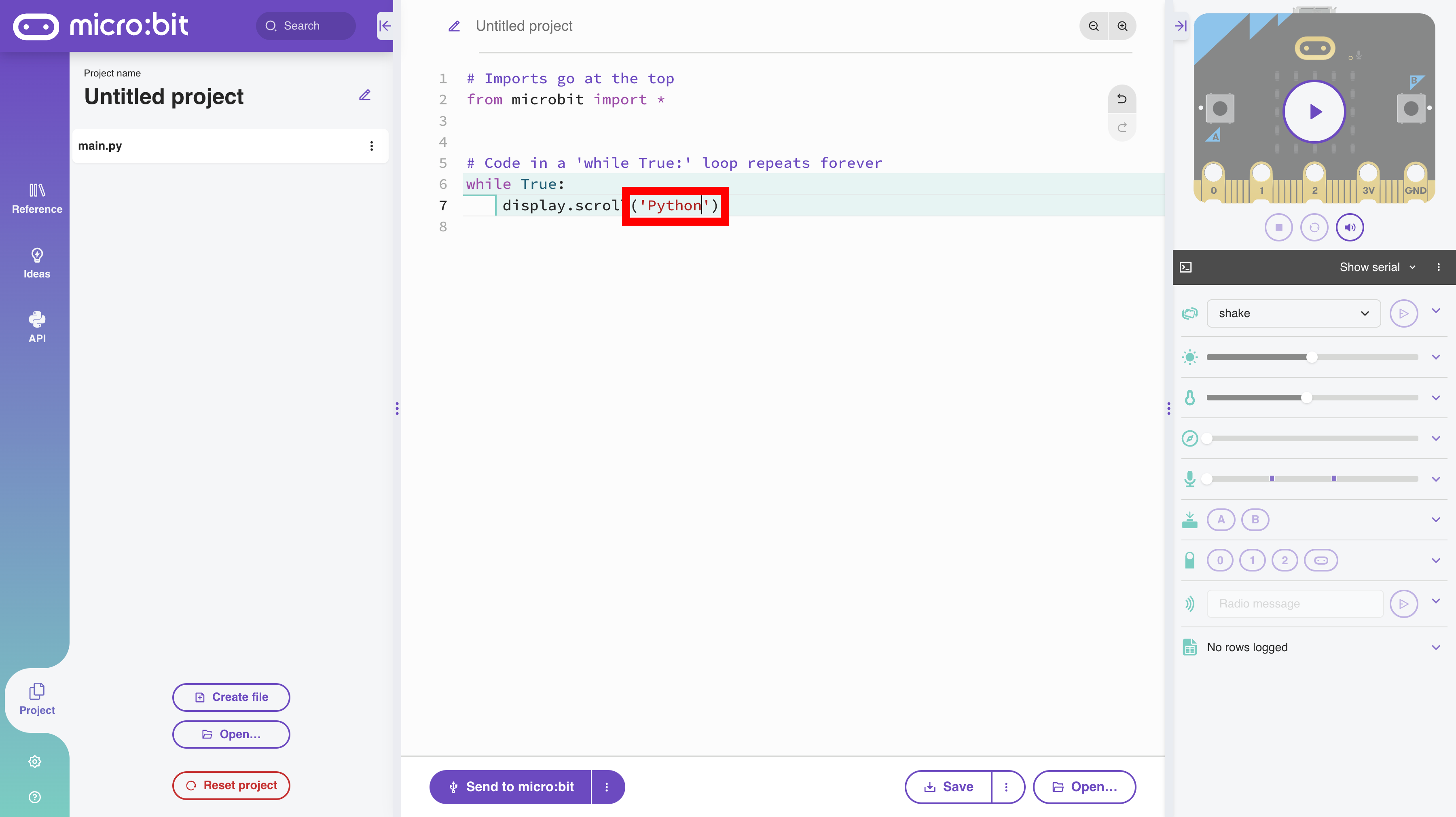
Change the string from 'Hello' to 'Python'.
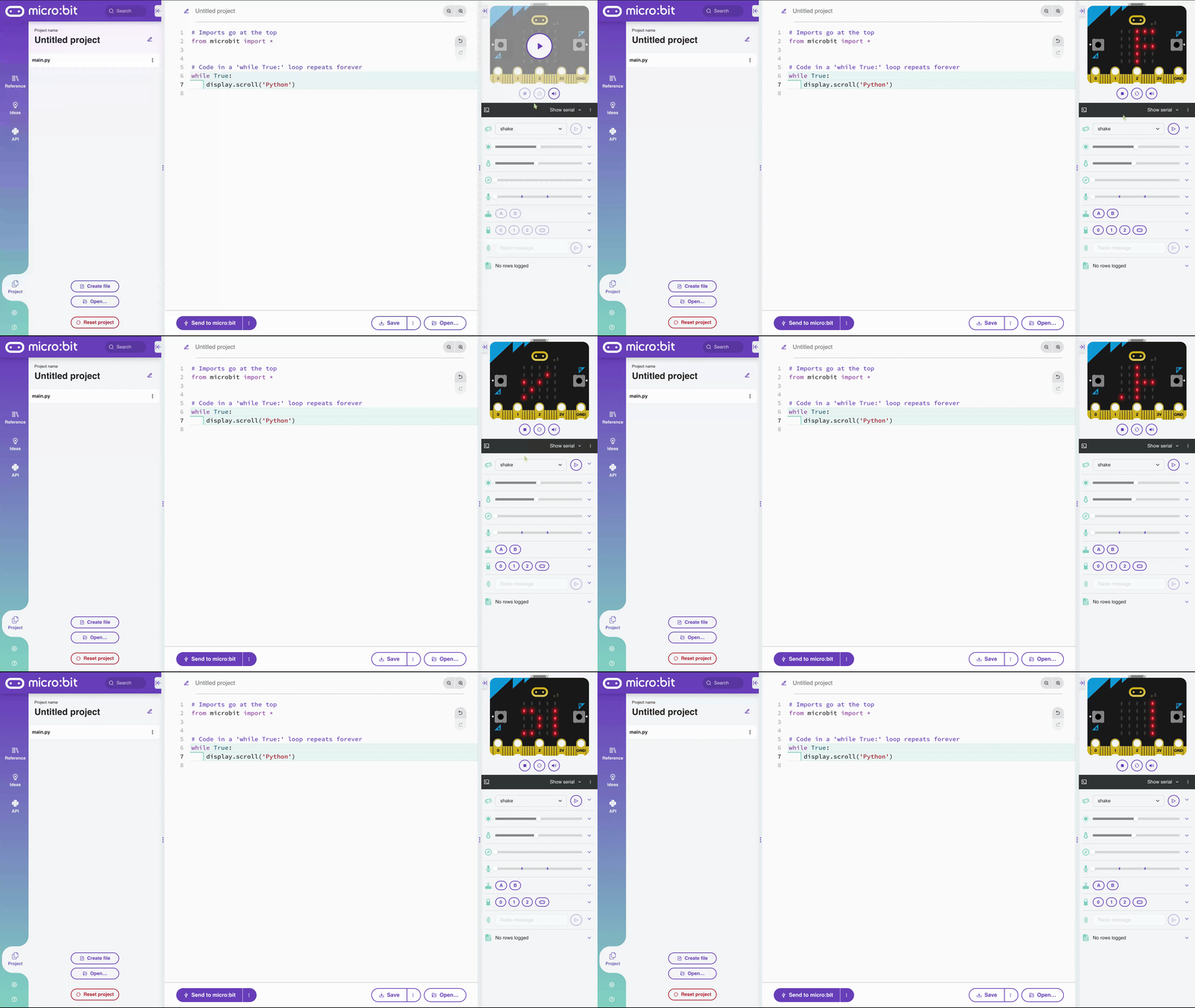
The code should be as follows:
# Imports go at the top
from microbit import *


# Code in a 'while True:' loop repeats forever
while True:
    display.scroll('Python')
Test the code in the micro:bit simulator in the upper right corner of the Python editor.
Run the code on the micro:bit. See TODO.
TODO:IMAGE OF CODE RUNNING ON DEVICE
display.show()#
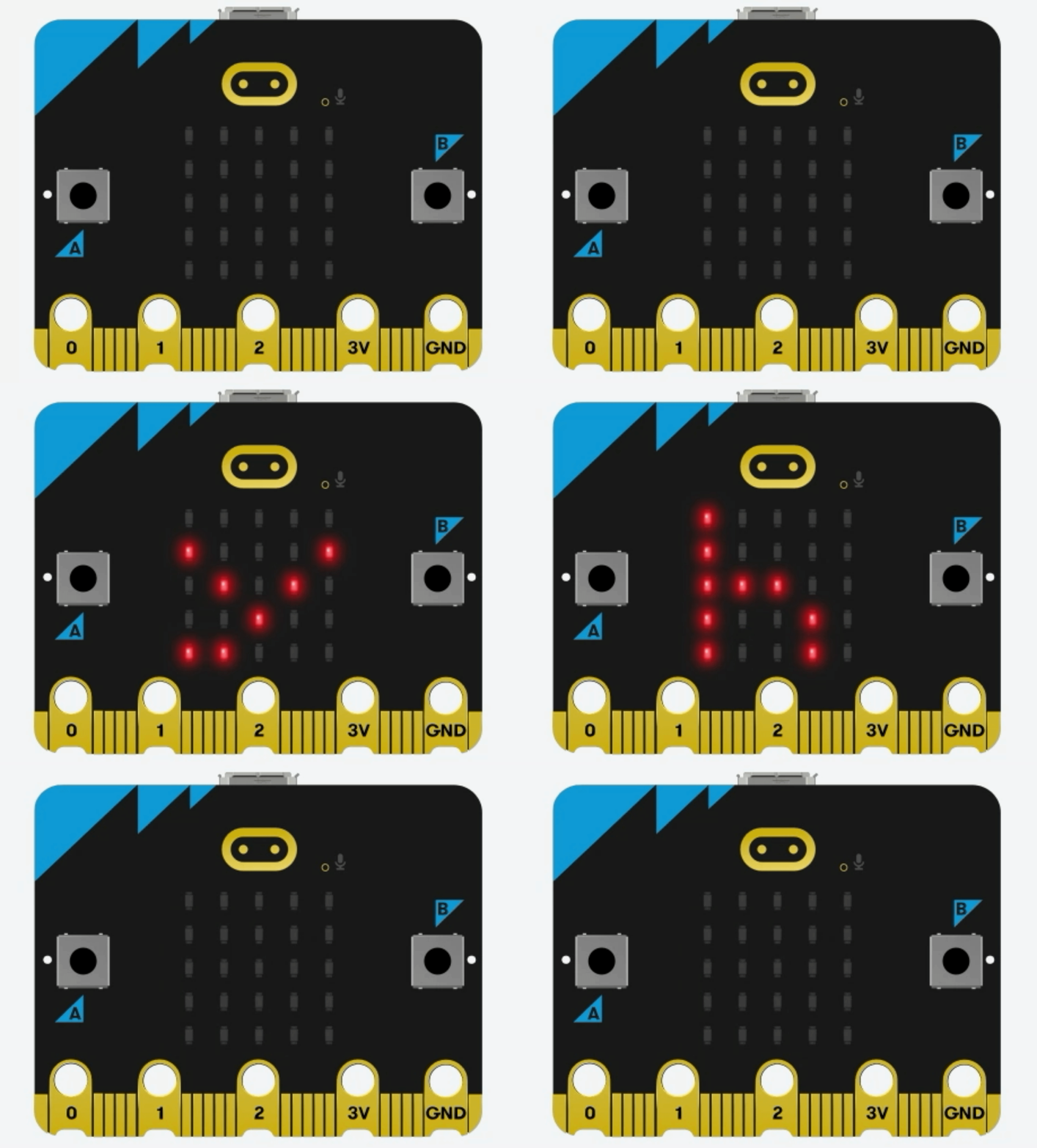
The display.show() method displays each character a string individually on the 5x5 LED matrix.
Replace scroll in the display.scroll() method with show.
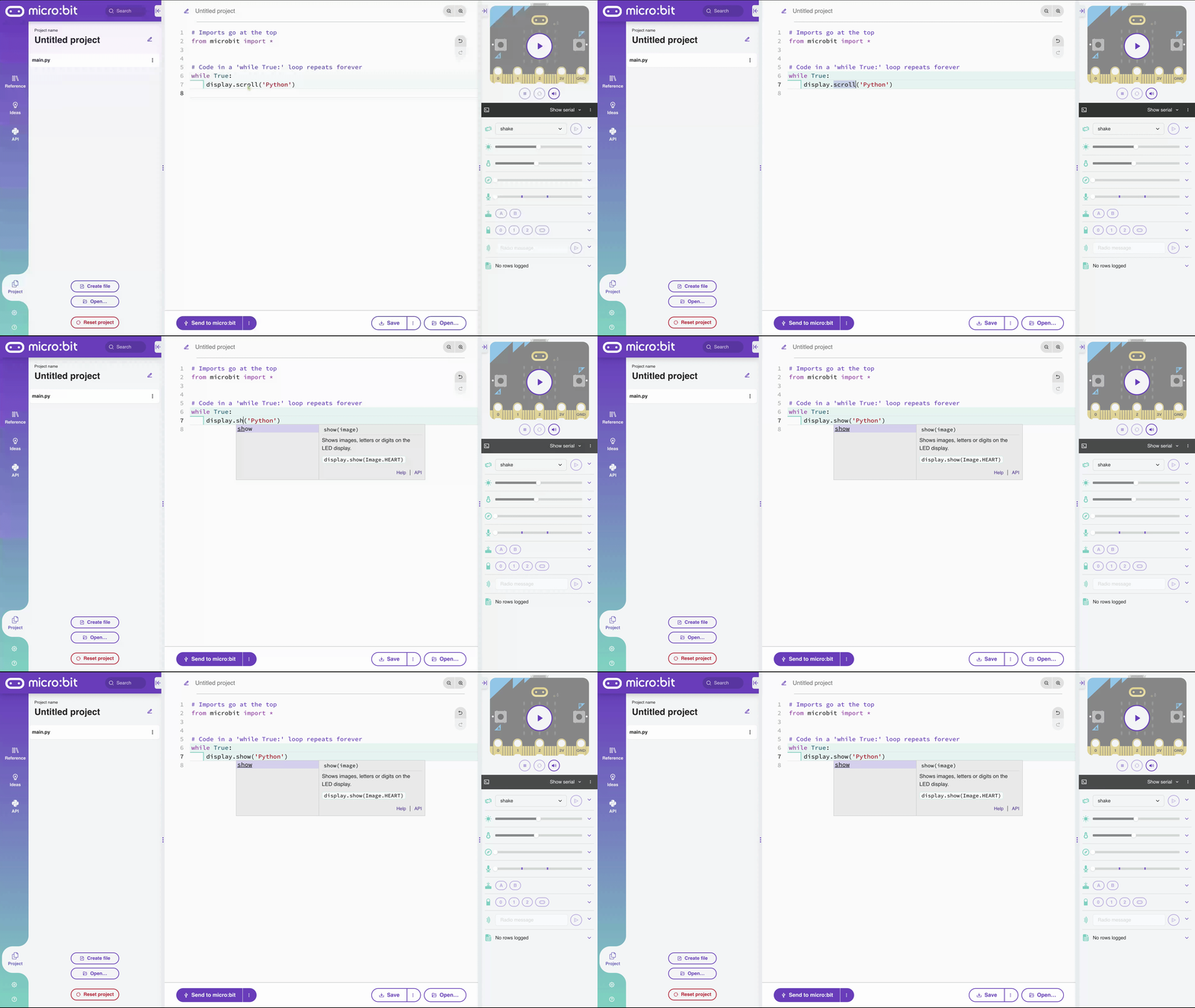
The code should be as follows:
# Imports go at the top
from microbit import *


# Code in a 'while True:' loop repeats forever
while True:
    display.show('Python')
Test the code in the micro:bit simulator in the upper right corner of the Python editor.
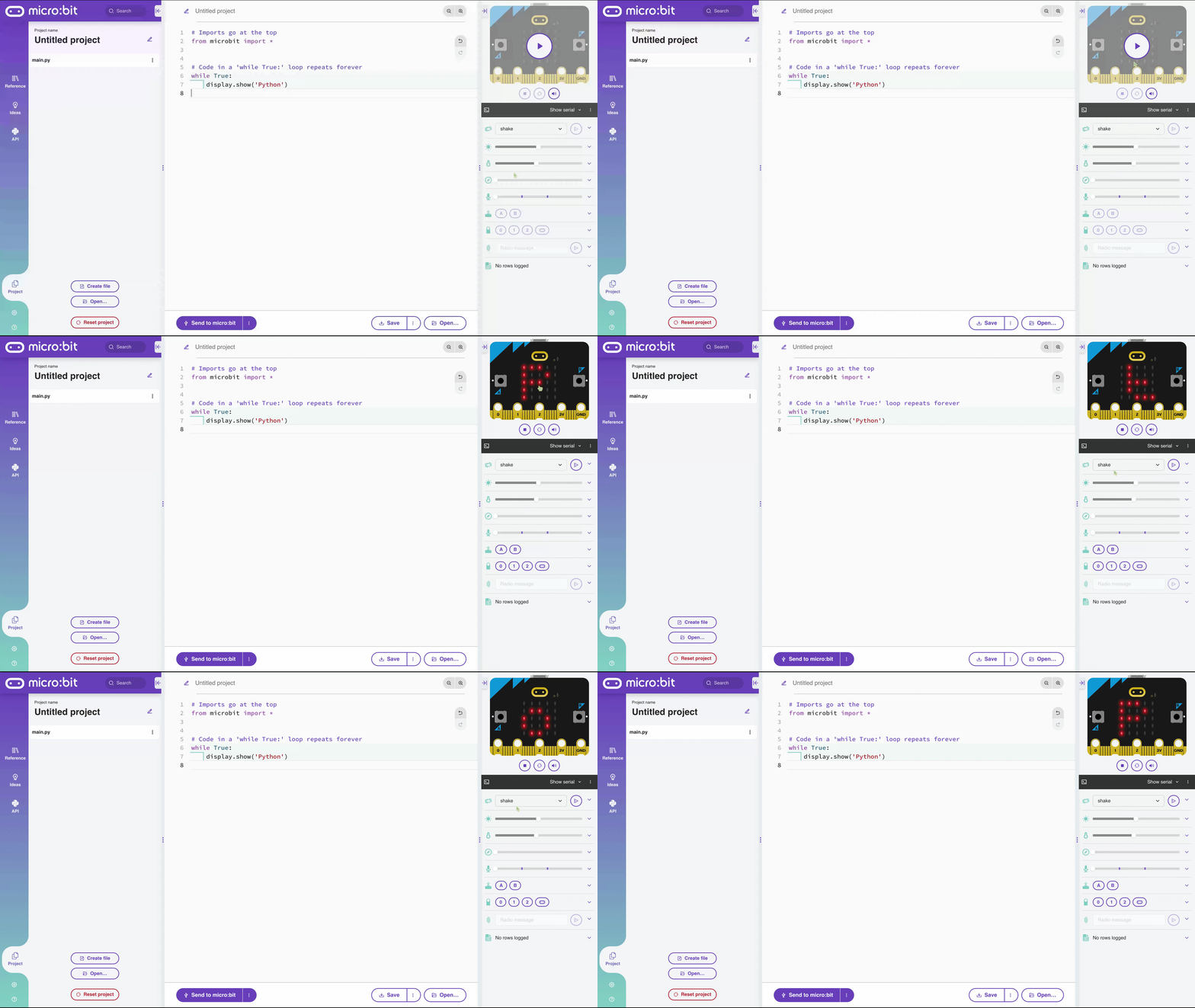
Run the code on the micro:bit.